


Can you control how AI understands your brand?
Right now, when ChatGPT or Perplexity scrape your website, they’re wrestling with pop-ups, scripts, and design code just to find your actual content. They might miss your best pages entirely, or worse, misrepresent what you do.
The llms.txt file changes that. It’s a simple text file that tells the AI models what matters on your site: who you are, what you offer, and where to look for answers.
If you’ve heard llms.txt mentioned in SEO circles but aren’t sure why it matters, here’s what you need to know.
What Is the llms.txt File?
The llms.txt file is a document you place in the main folder of your website to help artificial intelligence understand your content. It contains a list of your most important pages and a brief summary of what your websites does, formatted in a way that’s incredibly easy for machines to read.

Why Is the llms.txt File Important?
Modern websites are messy. They’re full of code for design, pop-ups, navigation bars, and ads. When an AI model (like ChatGPT or Claude) crawls your site, it has to dig through all of that noise just to find the actual text.
This creates two issues:
- It wastes resources: AI models have a limit on how much information they can process at once (called a “context window”). If your site is more code than content, the AI wastes its limited attention span on code.
- It confuses the AIs: With so much clutter, the AI might miss your core value proposition or hallucinate details because it couldn’t find the right facts.
llms.txt solves these issues by offering a “clean text” version of your site. It strips away the design and code and leaves only the pure information.
This ensures that when an AI looks at your brand, it sees exactly what you want it to see, without the distraction. This clarity is the basis of Generative Engine Optimization (GEO).
What Is the Difference Between llms.txt and robots.txt?
It’s easy to confuse these two files because they look similar. Both are simple text files that live in the main folder of your website, and both talk to web crawlers. However, they serve completely opposite purposes.
→ robots.txt tells search engines where they’re not allowed to go. You use it to block Google or ChatGPT from seeing private pages, like your admin login or duplicate content.
→ llms.txt tells AI models where the best information is located. You use it to point them toward your most important pages, like your documentation or pricing, so they don’t waste time guessing.
You don’t have to choose between them. Most AI-optimized websites will use both: robots.txt to keep bots out of private areas, and llms.txt to guide them to the public content you want them to cite.
How Is the llms.txt File Structured?
You don’t need to know how to code to read or write this file. It uses a simple formatting style called Markdown.
Markdown is just a way of writing text using plain symbols to create structure. Instead of complex HTML tags, you use simple characters like hashtags and dashes to tell the AI what it’s looking at. So, when it reads your llms.txt, it instantly knows who you are and where your most important information lives.
Here are the common elements you’ll use:
- # creates a main (H1) heading. You use this for your website name. ## creates an H2, and ### creates an H3.
- > creates a blockquote. You use this for a short summary of what your company does.
- – or * create a bullet point list item.
- [Text](URL) creates a link.
- : is for adding descriptions. Use it to explain what links lead to.
Here’s what a standard llms.txt file actually looks like. In this example, we’re creating a file for GetMint.
# GetMint

> GetMint helps brands track and optimize their presence in Large Language Models (LLMs) like ChatGPT and Perplexity.

## Core Resources
- [Product Overview](<https://getmint.ai/docs/overview.md>): A summary of features and use cases
- [Pricing Guide](<https://getmint.ai/docs/pricing.md>): Detailed breakdown of plans and costs
- [Case Studies](<https://getmint.ai/docs/cases.md>): Real-world examples of GEO success

## Optional
- [API Documentation](<https://getmint.ai/docs/api.md>): Technical details for developers
Notice how clean it is. There are no navigation bars, no footers, and no ads. And you aren’t limited to just basic lists. According to the official specification, you can add as much structure as you need.
If you have a complex website, feel free to use deeper sub-headings (like H3s or H4s), data tables, or even code snippets. As long as you stick to valid Markdown, the AI will be able to read it. In fact, providing more organization often gives the crawler better context about how your content connects.
Note: The links in the example end in .md, not .html. This is intentional. You’re pointing the AI to a text-only markdown version of that page. The files are stripped of design elements and ready for immediate ingestion. The official specification recommends doing so, but you can link to the HTML pages directly.
How to Create an llms.txt File
Since llms.txt is just a simple file, you can create it using Notepad (Windows), TextEdit (Mac), or a code editor like VS Code.
There are two ways to approach this: doing it manually to curate exactly what the AI sees, or using automated tools to generate it for you.
How to Create an llms.txt File Manually
We recommend this method for most businesses. It forces you to be surgical about your brand narrative rather than relying on a script to guess which pages matter.
Step 1: Audit Your Pillar Content
Don’t try to include your entire website. AI models prioritize density, not volume. Pick the 5 to 10 pages that define your business entity. These usually include:
- The homepage, your high-level elevator pitch.
- About us, which covers your history, mission, and leadership.
- Pricing page, which delineates your costs and tiers (important for accurate answers!).
- Core features/service pages, which explain in-detail what you actually do.
Step 2: Create Your Content Files (.md)
This is the most important step. For each page you selected, you need to create a “clean” version.
- Copy the text from your live webpage.
- Paste it into your text editor.
- Strip navigation links, footers, “Sign Up” buttons, and marketing fluff.
- Format it using simple Markdown (e.g., # for Main Titles, ## for Subtitles, and – for lists).
- Save the file with the .md extension (e.g., pricing.md, about.md).
Why do this? You’re creating a text-only mirror of your website. When the AI reads pricing.md, it gets the raw facts without missing anything. This is the better way, according to the official documentation, but you can still link directly to your HTML pages.
Step 3: Build the Index File (llms.txt)
Now, create a new file named llms.txt. This is the menu that tells the bot where to find the .md files that you just created.
Use this format:
# Your Brand Name

> A one-sentence summary of what your company does.

## Core Resources
- [Product Overview](/product.md): A summary of features
- [Pricing Guide](/pricing.md): Detailed breakdown of plans
- [Company History](/about.md): Who we are and our mission
Note: See how the links point to /pricing.md? That tells the bot to look for the clean file you made in Step 2, not your messy HTML page.
How to Create an llms.txt File Automatically
If you have a massive site (1,000+ pages), doing this manually isn’t scalable.
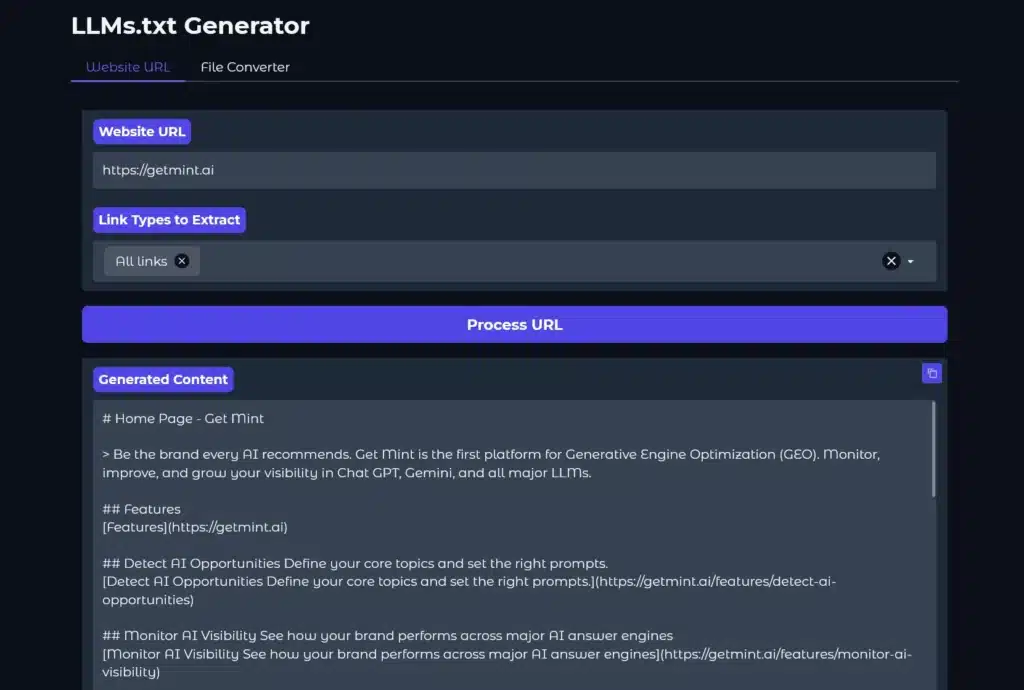
Tools like WordLift have released free generators where you paste your URL, and they scrape your site to build the list for you. You can manually edit the file afterward to include or omit pages using Notepad then use an llms.txt validator to check its structure.
If you use WordPress, check for plugins like “AI Visibility” or “LLM Text” in the repository. Hosting providers like Hostinger are also beginning to build this feature directly into their dashboards.
Where to Upload the llms.txt File
The location of your llms.txt file matters. Where you place it tells the AI crawler the scope of the content it covers. You have two options depending on your goal.
The first option is the entire website. This is best for marketing sites, blogs, and company homepages. If you want the AI to understand your entire brand, you must place the file in the root directory. It’s the top-level folder of your server (usually named public_html).
- URL result: yourdomain.com/llms.txt
- This file describes everything on this domain.
The second option is a specific section. This is great for developer documentation, help centers, or distinct product lines. If you only want to guide the AI through a specific part of your site (like your API docs), you can place the file inside that specific folder.
- URL result: yourdomain.com/docs/llms.txt
- This file describes only the content inside the /docs/ folder.
How to Upload the llms.txt File
Once you decide on the location, you need to get the files (both llms.txt and your .md content files) onto the server.
The easiest way is to talk to your developers. Send them the files and instruct them to upload them to the appropriate directories. However, if that’s not an option, you can either go through the hosting panel or use a WordPress plugin.
Method 1: The Hosting Panel
- Log in to your hosting dashboard, head to cPanel, and open File Manager.
- Open the public_html folder if it’s meant for the whole site.
- If it’s meant for a specific subdomain, navigate to that specific folder instead.
- Upload your llms.txt and .md files there.
To make sure the file is correctly uploaded, type the exact URL in your address bar (https://yourdomain.com/llms.txt). If you see the text file load in your browser, you’re live.
Method 2: WordPress Plugin
If you don’t have hosting access, do this inside WordPress:
- Go to Plugins > Add New, search for “WP File Manager,” and install it.
- Open the plugin tab. Drag and drop your text files into the main folder shown.
- Once uploaded, deactivate and delete the plugin. Don’t worry; the files will stay on your server. Deleting the plugin just removes the door so hackers can’t use it.
Final Thoughts: Do You Actually Need an llms.txt File?
The honest answer is not yet, but you should have one anyway.
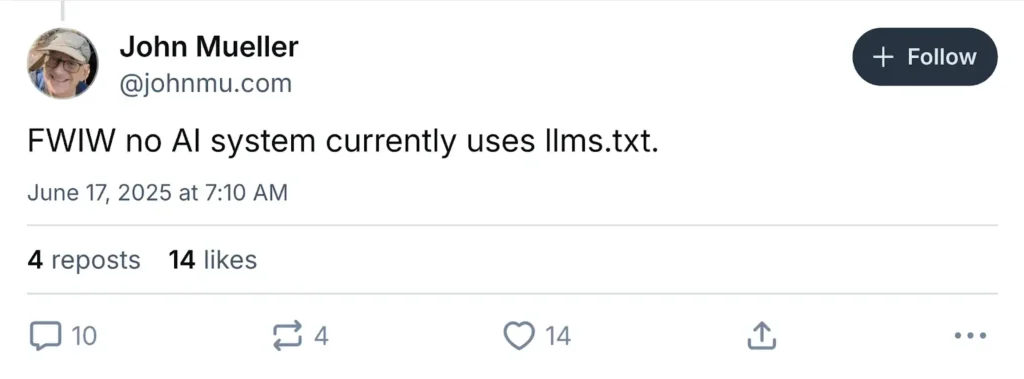
Right now, llms.txt is a proposed standard. It’s not mandatory internet law like robots.txt. There’s currently a debate in the SEO community about its immediate impact.
- Google hasn’t officially confirmed that llms.txt influences rankings in AI Overviews, search advocates like John Mueller have noted that major crawlers don’t currently prioritize these files over standard HTML, and Semrush reported that they didn’t find a correlation between implementing llms.txt and improved performance in AI results.
- Despite this, tech-forward companies like Anthropic (Claude), Vercel, and Hugging Face have already implemented it.
So, you might be wondering, “If Google doesn’t require it, why bother?” It’s because AI agents eventually might.
Creating this file takes about 30 minutes and costs you nothing. If it becomes the global standard in 2026, you’ll already be optimized while competitors scramble to catch up. If it doesn’t, you have a clean, text-only summary of your brand that AI agents can easily read.
It’s a low-effort, high-reward tactic. Making it easy for bots to parse your website is never a bad strategy when it comes to AI search visibility.
Frequently Asked Questions (FAQs)
Do the content files have to be in Markdown (.md)?
Technically, no. You can link to your normal HTML webpages in the list, and most AI bots will still try to read them. However, the official standard recommends using .md files because they strip away all the design code.
If creating separate .md files isn’t feasible for your team, linking to clean, content-focused HTML pages is also acceptable. Just avoid pages heavy with popups, forms, or navigation clutter.
Will this improve my Google rankings?
Not directly. Google hasn’t officially listed llms.txt as a ranking factor for traditional search results yet. This file is specifically designed for generative engines (like Claude, ChatGPT, and Perplexity) and AI agents. It’s about future-proofing your visibility in AI, not ranking #1 in blue links.
Is this different from an XML sitemap?
Yes. Your sitemap.xml lists every single page on your website so Google doesn’t miss anything. Your llms.txt should only list your most important pages. Think of the sitemap as an inventory list and llms.txt as a “Best Of” brochure.
Do I need a developer to do this?
No. If you can type in Notepad, you can do this. It’s just a text file. While developers can automate the process for huge sites, you can easily create and upload a manual file yourself using a file manager plugin or your hosting dashboard.
Can I use llms.txt to block AI bots?
No, that’s what robots.txt is for. If you want to stop an AI from scraping your content, you use a “Disallow” rule in your robots file. The llms.txt file is purely for helping bots find the right content, not blocking them.

